Quick Start
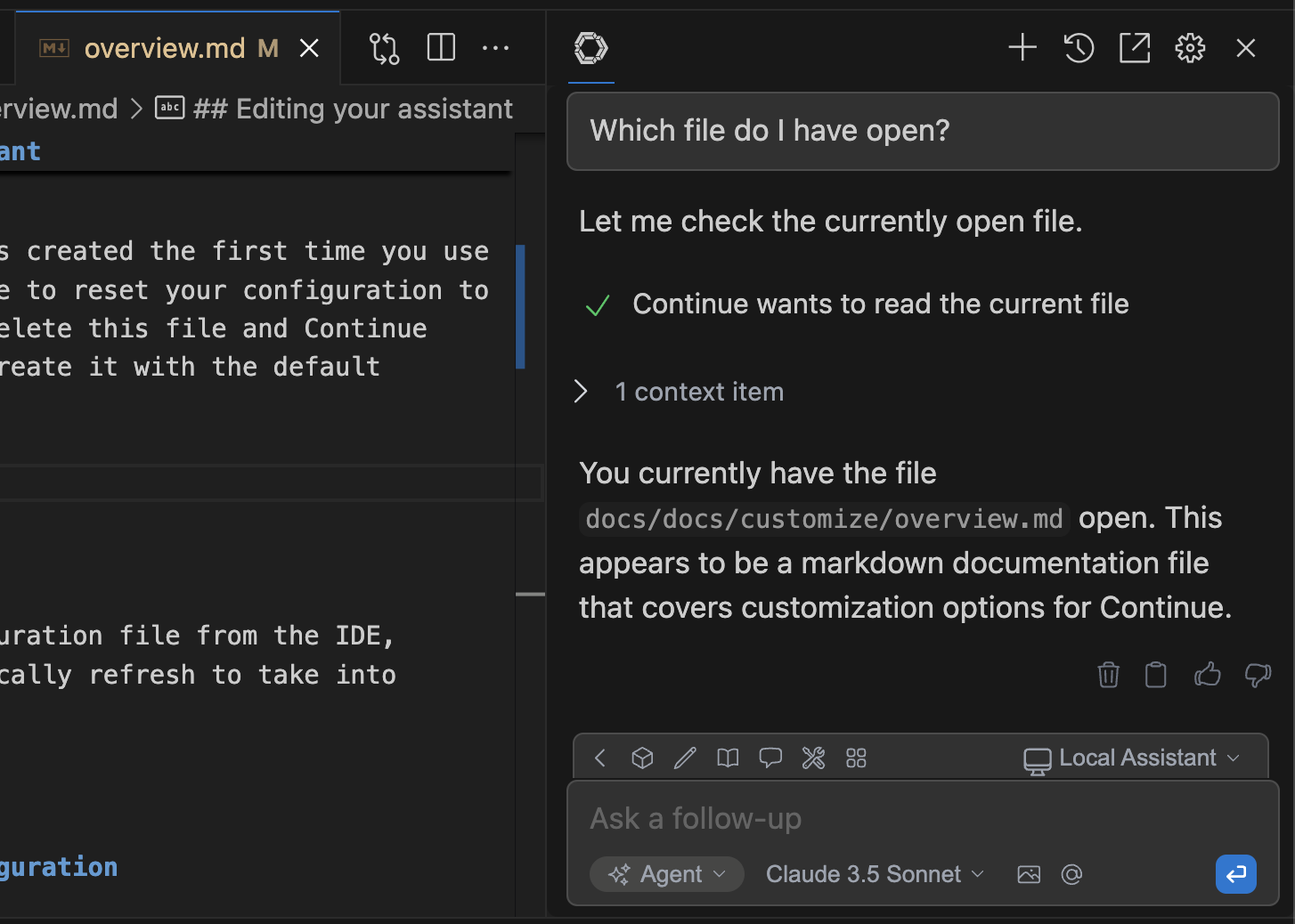
Get started with Prometheus’s Agent mode to automatically implement code changes, fix bugs, and run commands using AI-powered tools that can modify your codebase based on natural language instructionsAgent mode equips the Chat model with the tools needed to handle a wide range of coding tasks, allowing the model to make decisions and save you the work of manually finding context and performing actions.
Learn how to choose the right mode
Learn how to choose the right mode
Chat Mode
Learn and discuss without changing code.Mental Model: Talking to a knowledgeable colleagueBest For: Explaining concepts, comparing approaches, code review discussions.
Plan Mode
Safely explore and plan with read-only tools.Mental Model: Architect surveying before renovationBest For: Understanding a codebase, bug investigation, planning implementations.
Agent Mode
Make actual changes with full tool access.Mental Model: Contractor executing approved blueprintsBest For: Implementing features, fixing bugs, running tests and commands.
How to Use Agent Mode
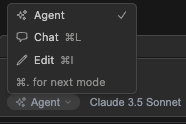
You can switch toAgent in the mode selector below the chat input box. The mode selector offers three options:
- Chat mode: No tools available, pure conversation
- Plan mode: Read-only tools for safe exploration and planning
- Agent mode: All tools available for making changes
If Agent mode or Plan mode is disabled with a
Not Supported message, the selected
model or provider doesn’t support tools, or Prometheus doesn’t yet support tools
with it. See Model Blocks for more information.How to Chat with Agent mode
Agent mode lives within the same interface as Chat mode, so the same input is used to send messages and you can still use the same manual methods of providing context, such as@ context providers or adding highlighted code from the editor.
How to Use Natural Language with Agent mode
With Agent mode, you can provide natural language instruction and let the model do the work. As an example, you might saySet the @typescript-eslint/naming-convention rule to “off” for all eslint configurations in this projectAgent mode will then decide which tools to use to get the job done.
How to Give Agent Mode Permission
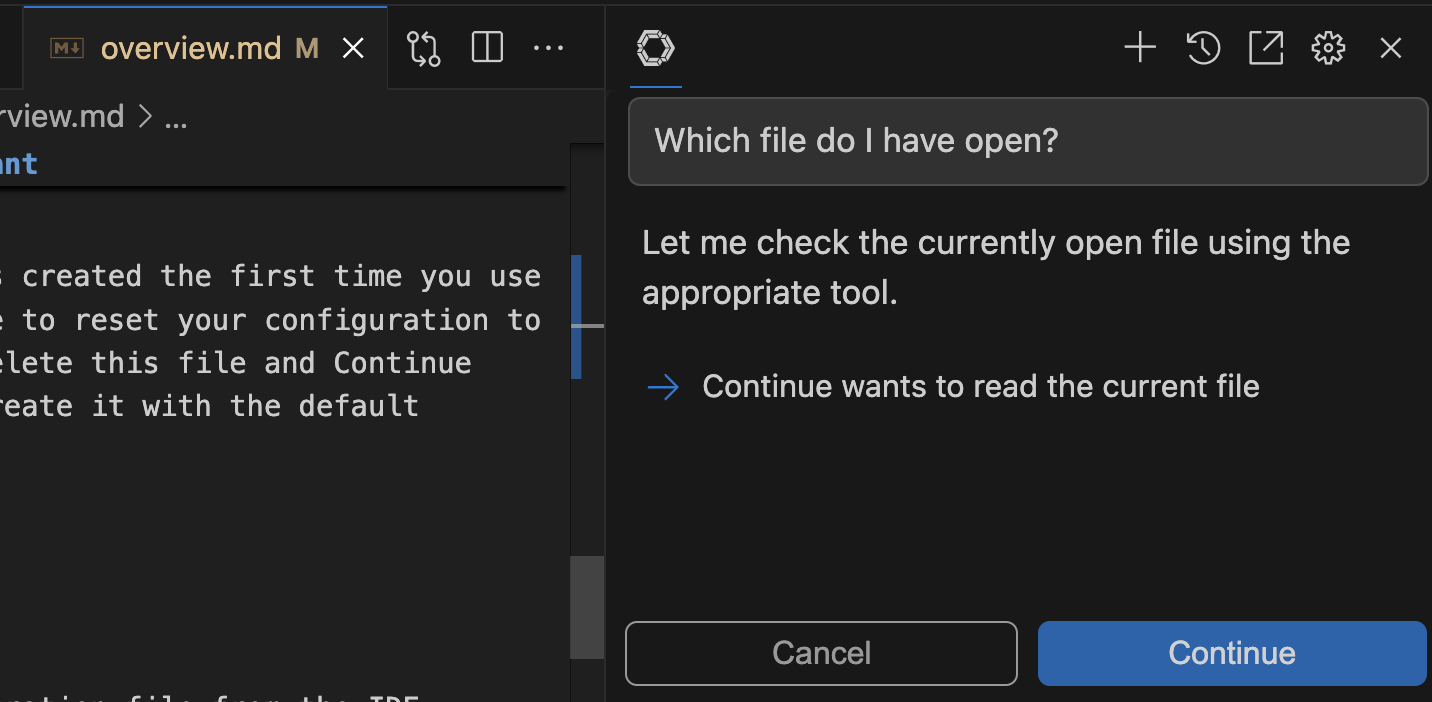
By default, Agent mode will ask permission when it wants to use a tool. ClickPrometheus to allow Agent mode to proceed with the tool call or Cancel to reject it.
How to View Tool Responses
Any data returned from a tool call is automatically fed back into the model as a context item. Most errors are also caught and returned, so that Agent mode can decide how to proceed.