

Quick Start Tutorial
Learn Prometheus’s core features through hands-on exercises. Get started with Autocomplete, Edit, Chat, and Agent mode in minutes.Welcome to Prometheus! This interactive tutorial will guide you through all four core features using practical examples. Follow along step-by-step to learn more about Prometheus’s capabilities.
Prerequisites: Make sure you have installed
Prometheus and signed
in to get started.
🔄 Autocomplete
What it does: Provides intelligent inline code suggestions as you type, powered by AI.1
Create a Test File
Create a new file called
tutorial.js (or use any language you prefer) in your IDE2
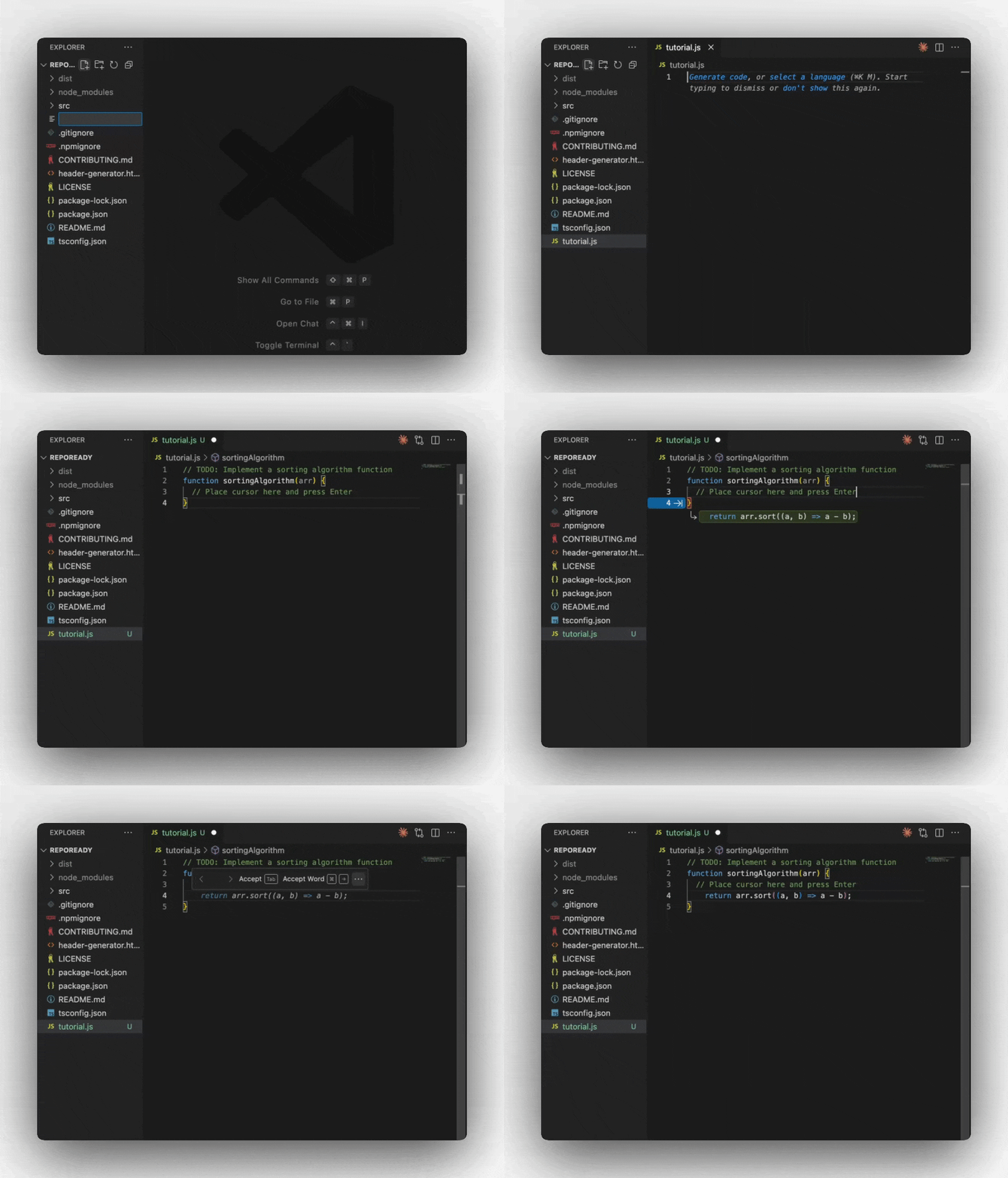
Try Autocomplete
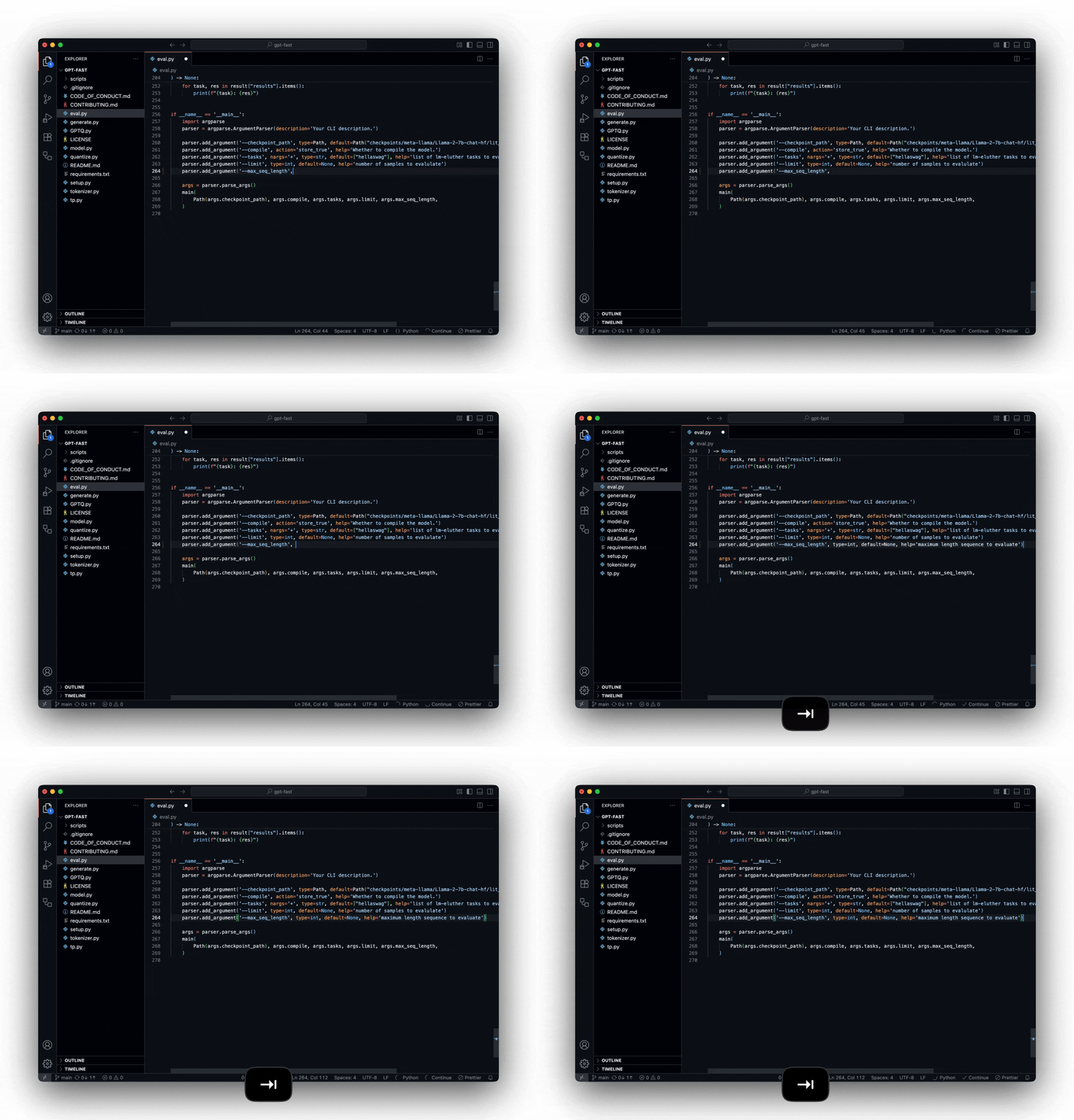
Copy this starter code and place your cursor at the end of the comment:Press Enter and watch Prometheus suggest code completions. Press Tab to accept suggestions.
3
See the Magic
Prometheus will intelligently suggest function implementations based on the context and comment.
✏️ Edit
What it does: Make quick, targeted changes to specific code sections using natural language instructions.1
Add Sample Code
Paste this bubble sort implementation in your file:
2
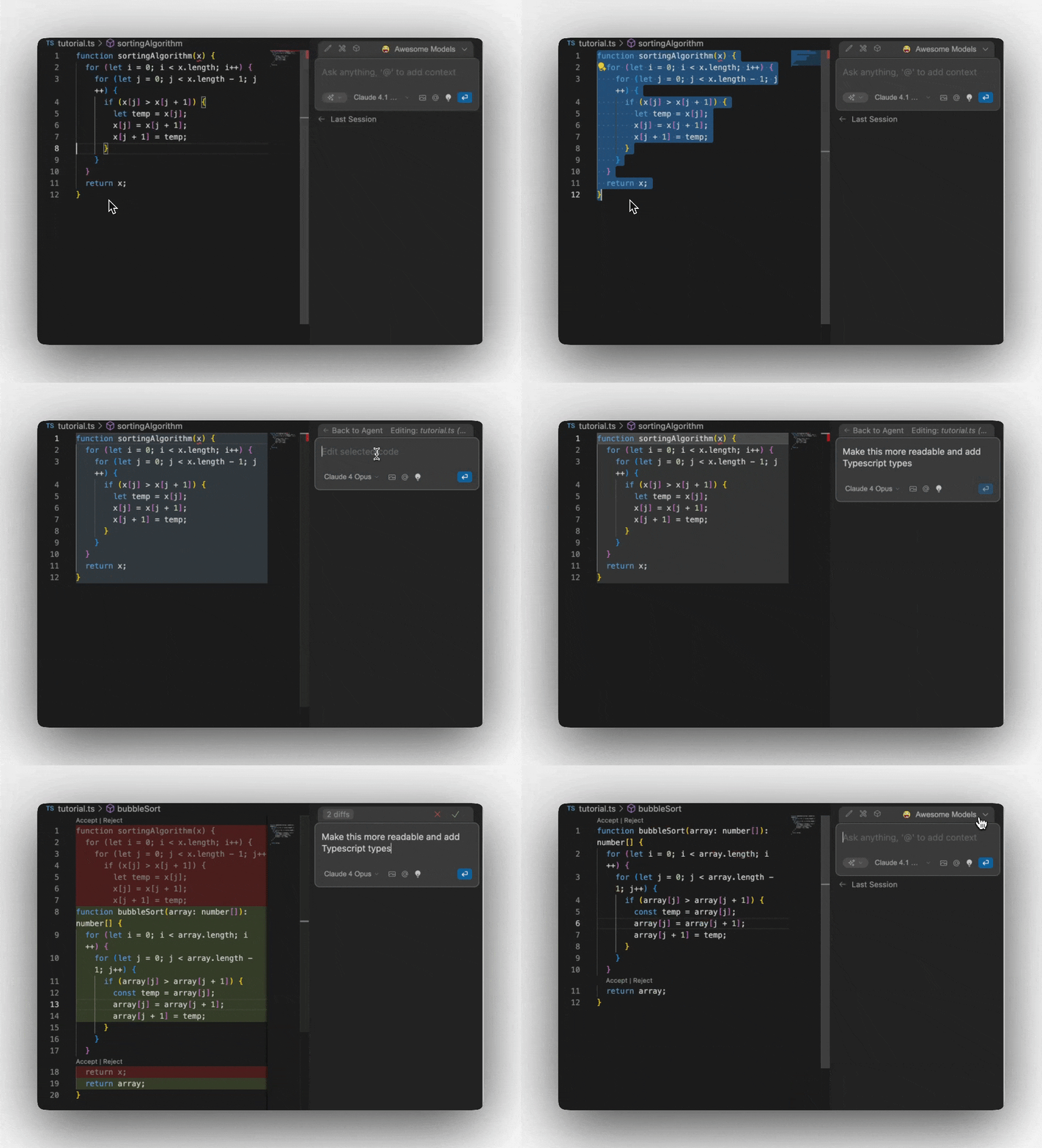
Highlight the Function
Highlight the entire function in your editor
3
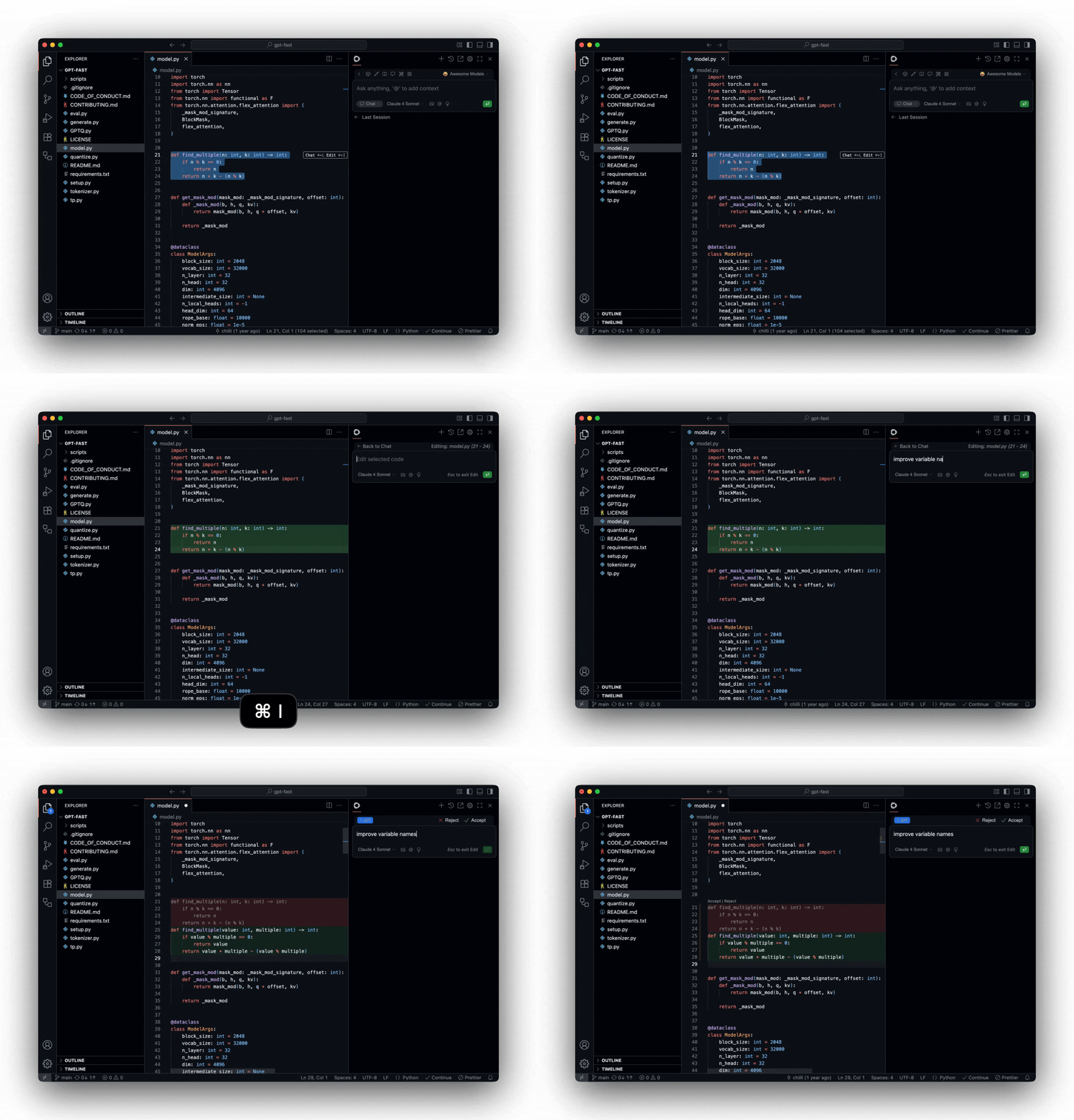
Open Edit Mode
Press Cmd/Ctrl + I to open Edit mode
4
Give Instructions
Type:
"make this more readable and add TypeScript types"5
Watch the Magic
Watch Prometheus refactor your code automatically!
6
Review Changes
Prometheus will show you a diff of the proposed changes. Accept or reject individual changes as needed.
Edit is perfect for refactoring, adding documentation, fixing bugs, or
converting between languages/frameworks.
💬 Chat Mode
What it does: Interactive AI assistant that can analyze code, answer questions, and provide guidance without leaving your IDE.1
Add Another Function
Add this second sorting function to your file:
2
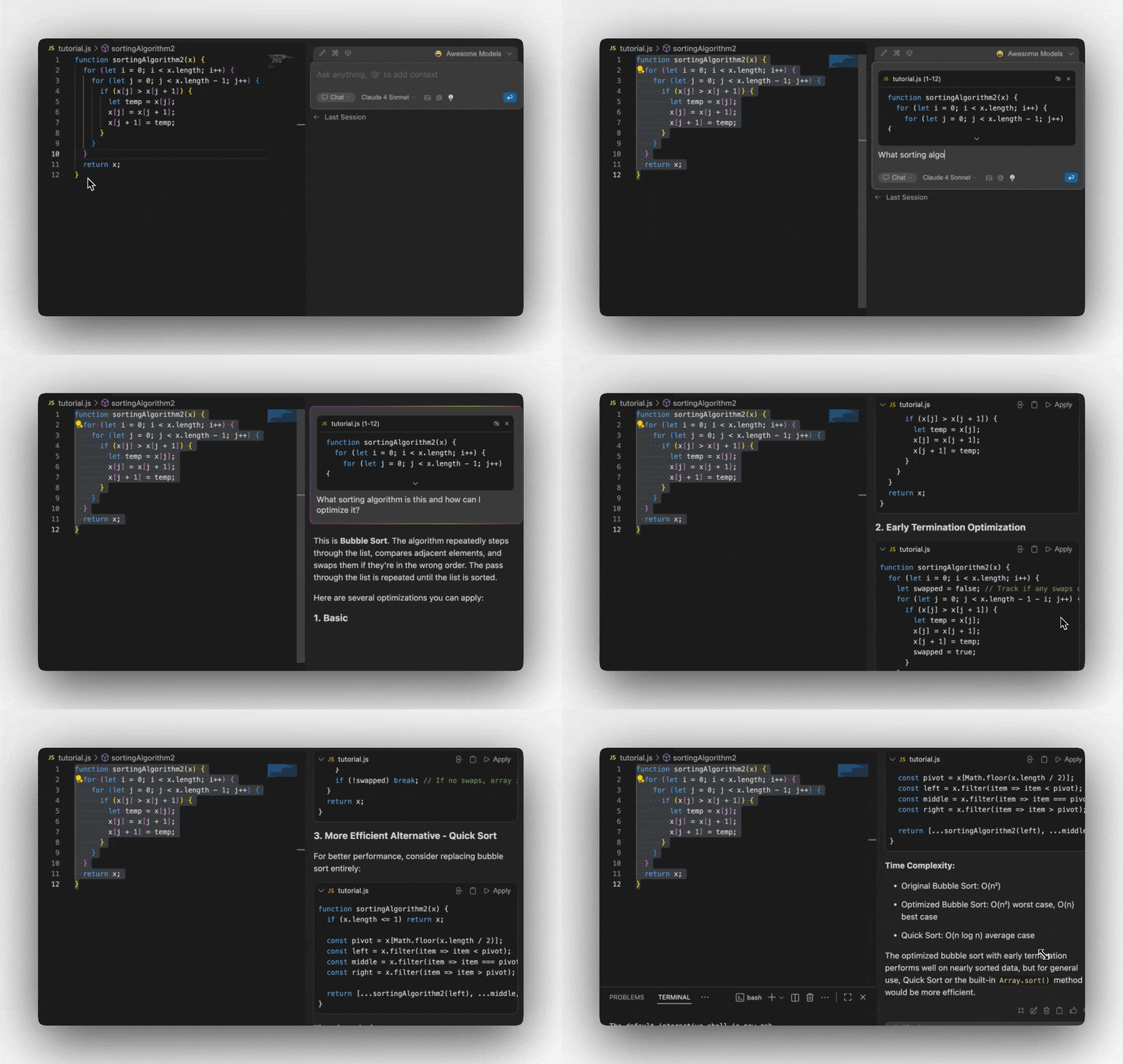
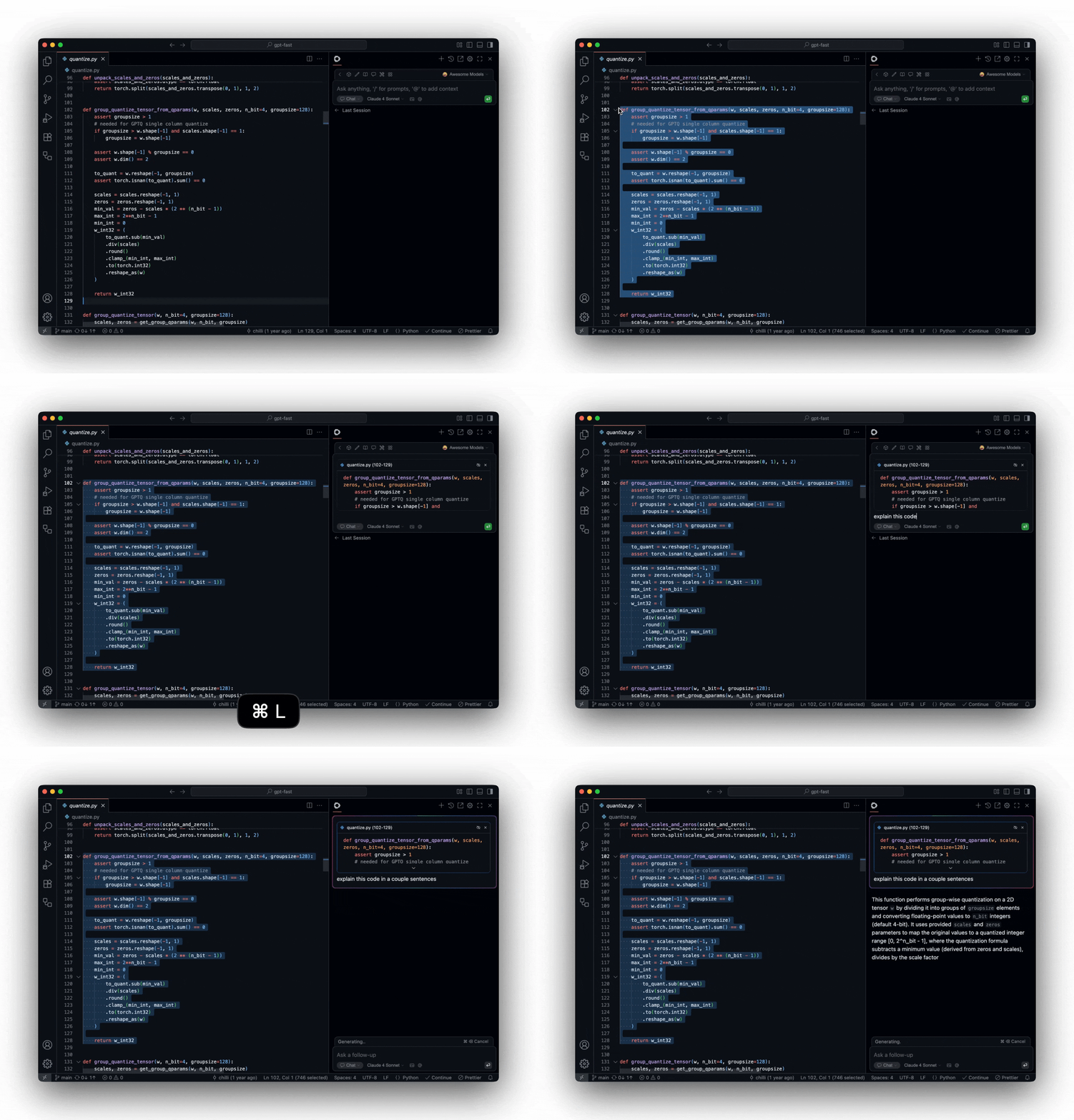
Start a Conversation
- Highlight the function
- Use the keyboard shortcuts below to add it to Chat.
- Ask:
"What sorting algorithm is this and how can I optimize it?"
3
Explore Further
Try these follow-up questions:
"Show me how to implement quicksort instead""What's the time complexity of this algorithm?""Can you write unit tests for this function?"
Chat Mode Keyboard Shortcuts
- VS Code
- JetBrains IDEs
Cmd/Ctrl + L
New Chat / New Chat With Selected Code / Close Prometheus Sidebar If Chat Already In FocusCmd/Ctrl + Shift + L
Focus Current Chat / Add Selected Code To Current Chat / Close Prometheus Sidebar If Chat Already In Focus
New Chat / New Chat With Selected Code / Close Prometheus Sidebar If Chat Already In FocusCmd/Ctrl + Shift + L
Focus Current Chat / Add Selected Code To Current Chat / Close Prometheus Sidebar If Chat Already In Focus
🤖 Agent Mode
What it does: An autonomous coding assistant that can read files, make changes, run commands, and handle complex multi-step tasks.1
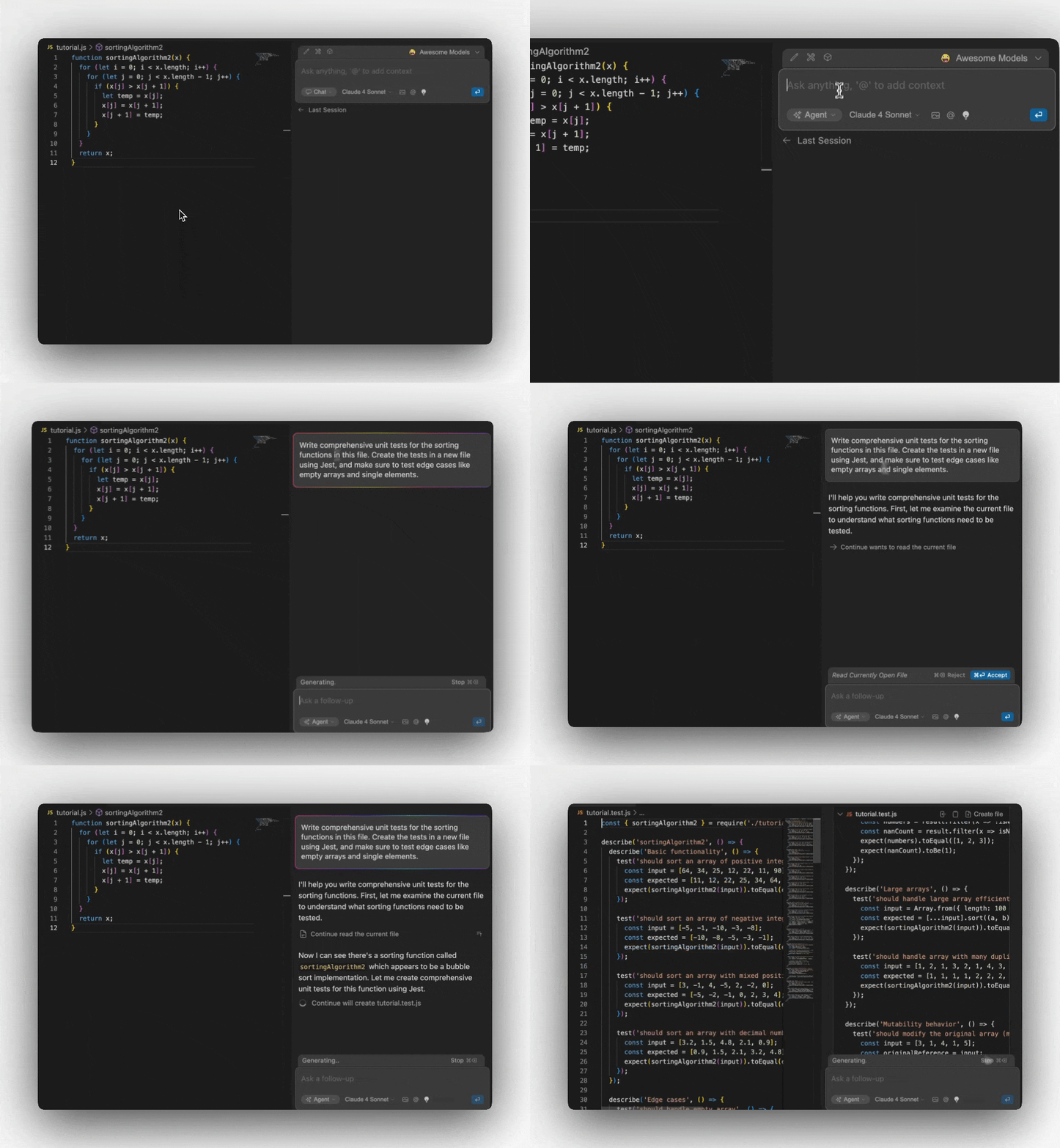
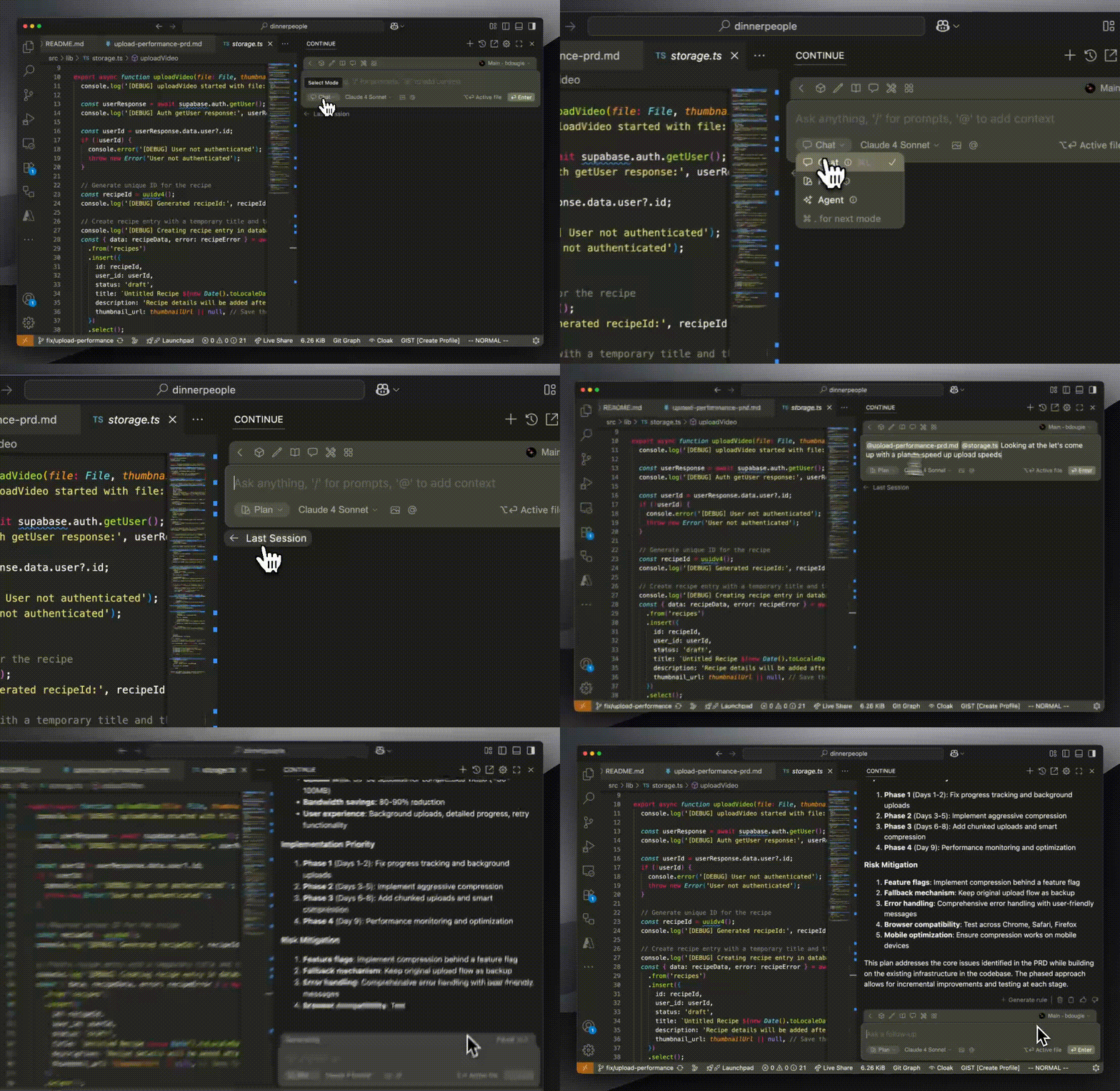
Switch to Agent Mode
- Open the Prometheus panel
- Click the dropdown in the bottom left of the input box
- Select “Agent” mode
2
Give Agent Mode a Complex Task
Try this prompt:
"Write comprehensive unit tests for the sorting functions in this file. Create the tests in a new file using Jest, and make sure to test edge cases like empty arrays and single elements."3
Watch Agent Mode Work
Agent mode will:
- ✅ Analyze your existing code
- ✅ Create a new test file
- ✅ Write comprehensive tests
- ✅ Handle setup and imports
- ✅ Explain what it’s doing at each step
Explore More Extension Examples
Ready to explore more? Prometheus offers five powerful features to enhance your coding workflow:- Agent Mode
- Chat Mode
- Plan
- Edit
- Autocomplete
Agent Mode equips the Chat model with the tools needed to handle a wide range of coding tasks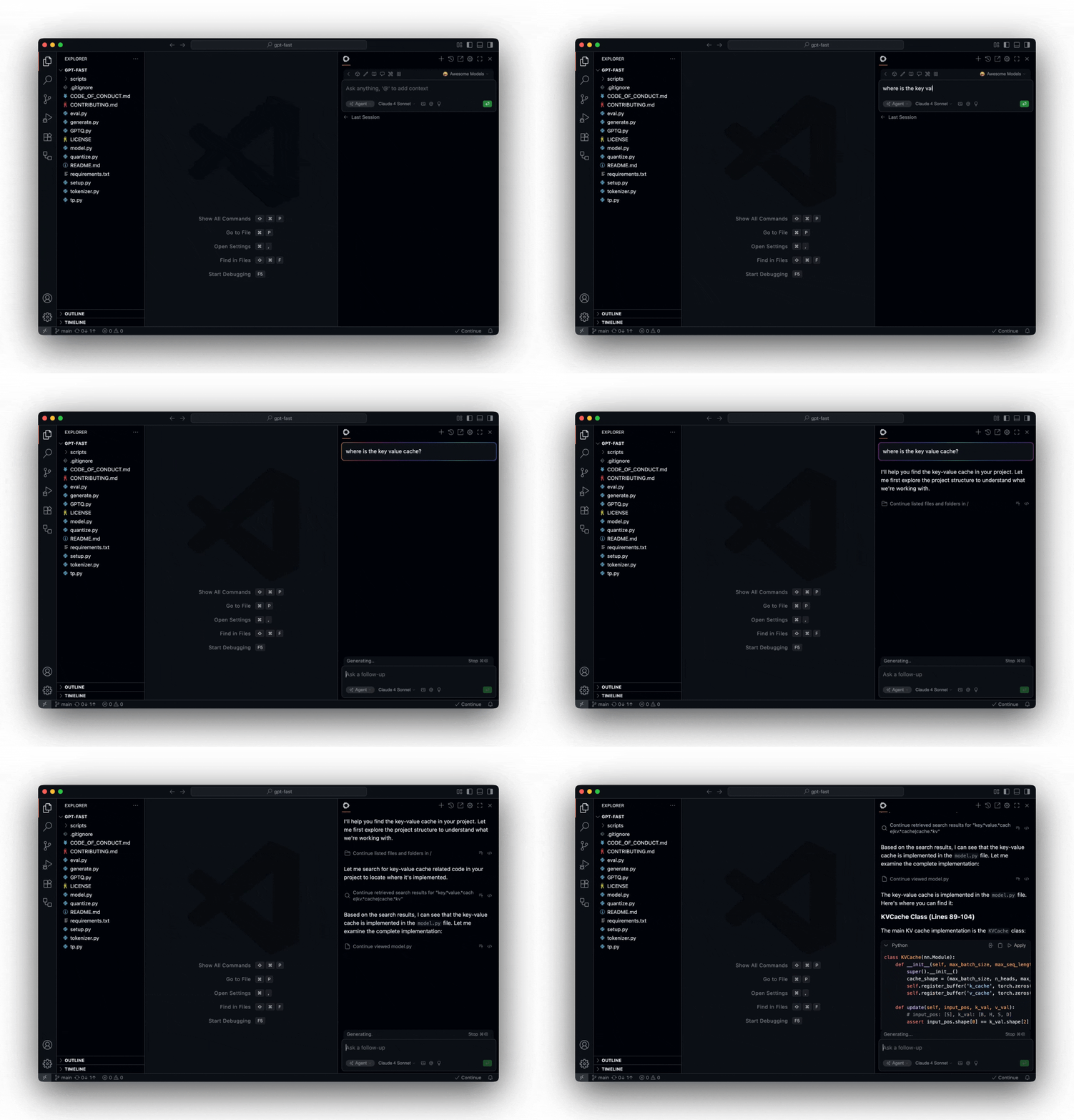
Learn more about Agent Mode
🚀 Next Steps
Congratulations! You’ve experienced all four core Prometheus features. Here’s what to explore next:Customize Your Setup
Configure models, add context providers, and personalize your workflow
Advanced Features
Dive deeper into Agent mode capabilities and advanced use cases
Model Providers
Connect your preferred AI models and providers
Join Community
Get help and share experiences with other Prometheus users
📚 Feature Deep Dives
Ready to master specific features? Check out these detailed guides:Autocomplete Deep Dive
Autocomplete Deep Dive
Learn about configuring autocomplete
models, fine-tuning
suggestions, and troubleshooting
common issues.
Chat & Agent Mode Best Practices
Chat & Agent Mode Best Practices
Enterprise & Teams
Enterprise & Teams
Explore Hub configurations, organization
management, and sharing
configurations.
Need help? Check our troubleshooting guide or ask a
question in our community
discussions.